Top 24 Google Analytics Chrome Extensions & Sheets Add-ons

Google Analytics Chrome extensions can save a lot of time when you are testing tracking directly on a live site. The right browser tools help you inspect tags, debug events, check dataLayer activity, review pixels, and spot Consent Mode issues without moving between several platforms. In this article, we’ve selected the best Chrome extensions for Google Analytics, Google Tag Manager, and day-to-day tracking QA.
We’ve been working with Google Analytics and Google Tag Manager since they were first made all those years ago! So we’ve used lots of different Chrome Extensions and Sheets Add-ons. Here are our favourites.
17 Best Google Analytics Chrome Extensions
Consent Mode Monitor
The Consent Mode Monitor Chrome extension gives you a quick way to check live consent behaviour while browsing a site. It shows the Default and Updated Consent Mode states, highlights GTM tags with missing consent settings, and helps you see whether the implementation is working beyond simply having a cookie banner on the page.
It is particularly handy for fast QA checks, prospecting audits, and cases where remote scans are blocked by Cloudflare or similar systems. The extension runs from the active browser tab when you click Scan, and it does not need a GTM account access to review the page.
Google Tag Assistant
The first of the Google Analytics tools that you’re sure to find invaluable is Google Tag Assistant. It’s a really handy debugging tool. Google Tag Assistant can help you with your Google Analytics codes and Google Tag Manager (GTM) containers. The tool is able to identify which of those codes and containers are present on your site. It can then flag any errors in your implementation and make recommendations for improvement.
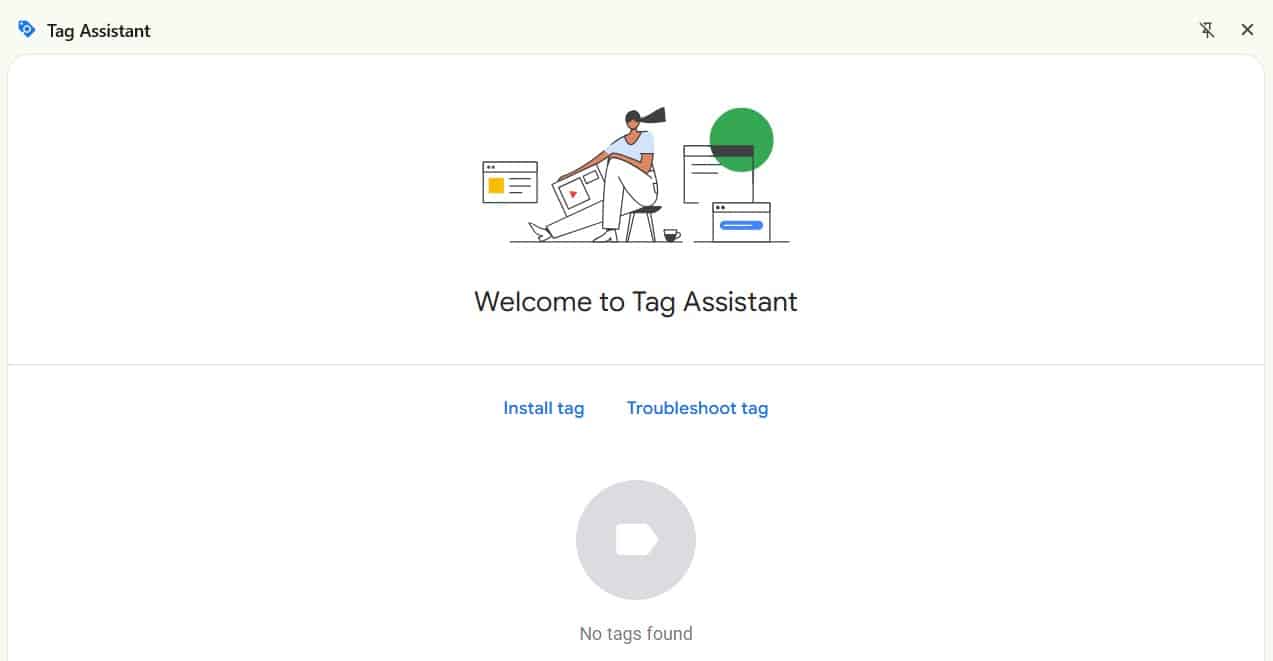
What’s more, Google Tag Assistant lets you record a session as you travel through your site. That allows you to act like a real site user. The tool will then tell you which tags fire on which pages as you move through your site. That makes debugging so much simpler and more efficient.
Google Analytics Debugger
The Google Analytics Debugger works in conjunction with built-in Google developer tools. When enabled, it can send data to those tools to help with Google Analytics debugging. That lets you see what information is being sent to Google Analytics via the JavaScript console. Information displayed includes things like events, e-commerce data and tracking IDs.
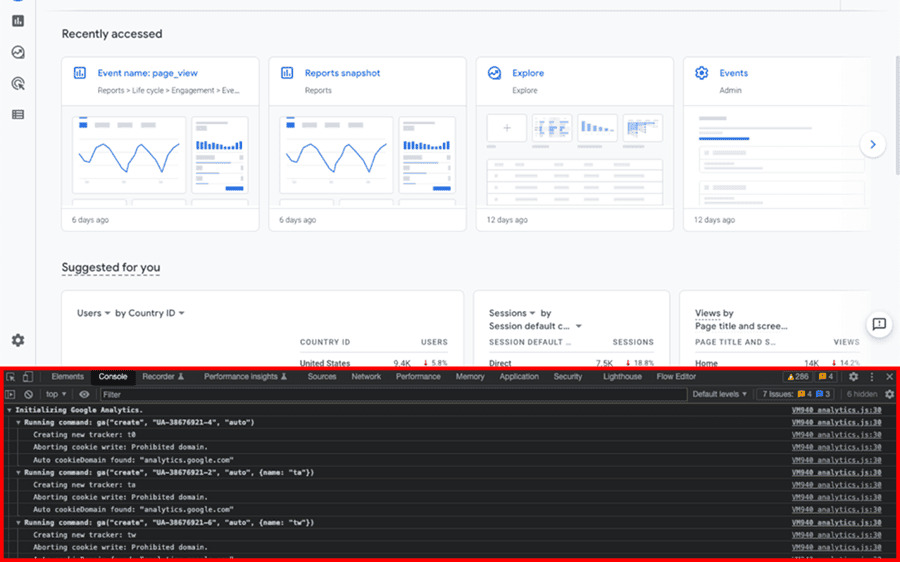
All that data can then be extracted from one report. The tool also provides error messages and warnings. They will tell you when your tracking code is set up incorrectly. The biggest advantage of using Google Analytics Debugger is that it lets you debug your site without having to change your tracking code.
GA4 Optimizer
GA4 Optimizer is a free Chrome extension designed to fix the most frustrating parts of the Google Analytics 4 interface. Built with privacy in mind (data never leaves your browser), it bridges the gap between Universal Analytics and GA4 by bringing back missing workflows and adding powerful UI enhancements.

Top features include:
- Annotations in Explorations: View your property annotations directly inside Exploration charts to instantly add context to data spikes.
- Advanced Table Filters: Brings back the advanced, multi-condition filtering you used to have in Universal Analytics.
- Read-Only Exploration Edits: Allows you to change the date range on Exploration reports shared with you, even if you only have read-only access.
- See all of GA4 Optimizer’s features here.
Adswerve – dataLayer Inspector+
Adswerve – dataLayer Inspector+ is perhaps better described as a toolkit. The GTM extension has a whole host of features that can be applied to any and all areas of your analytics. Where the extension is most helpful is in letting you inspect and monitor the dataLayer. By using the dataLayer Inspector+ you can see what is being pushed to the GTM dataLayer. You can also inspect what is sent to Google Analytics and when pushes are happening.
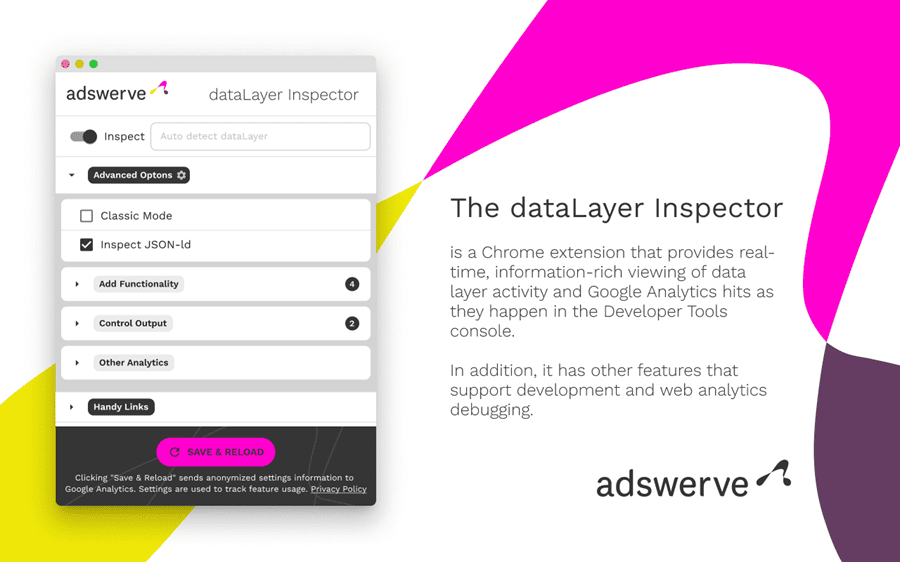
That makes it much simpler to identify when you have problems or issues that need attention. The extension’s new ‘Insert GTM Container’ feature is another handy tool. It lets you test and tweak your GTM container snippets. That’s without needing another extension like the GTM Injector. There’ll be more on that particular tool a bit later.
ObservePoint Tag Debugger
ObservePoint Tag Debugger is a Chrome extension which you might want to add to your analytics arsenal. It’s designed to make it quicker and easier for you to audit and debug all of your analytics tags. Where this tool outstrips some other options, is by supporting the likes of Adobe Analytics and Ensighten, as well as Google Analytics.
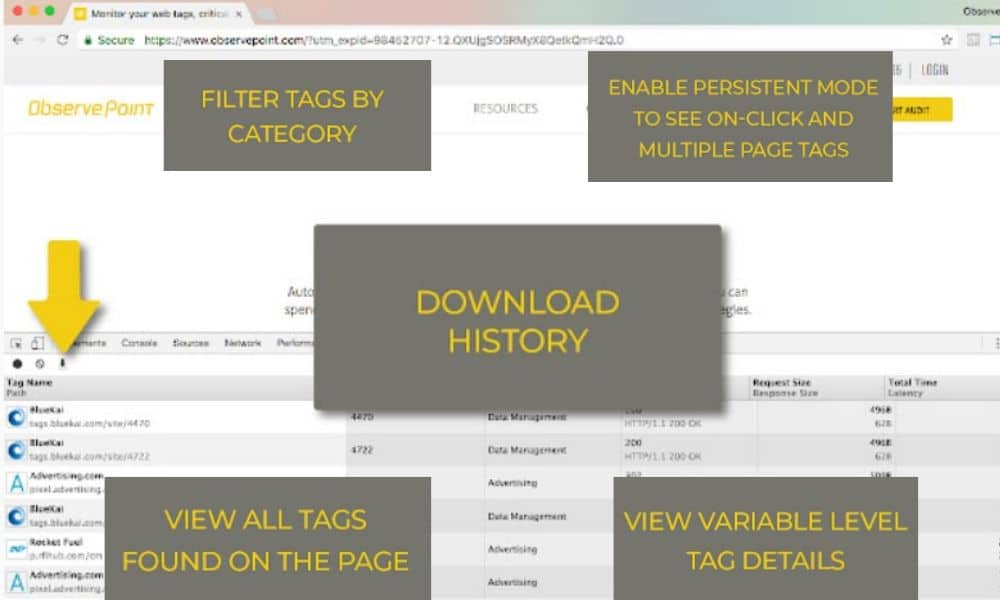
The extension adds a new tab to Chrome Developer Tools. Here you will get a detailed view of your analytics tags. You can get equally detailed breakdowns of things like tracking ID and custom dimensions for Google Analytics. Another great thing to note about the ObservePoint offering is that it can display more than just analytics tags. It can also display all marketing and advertising tags.
Debugger for Adobe Analytics
Okay, so we’re stepping a little beyond the bounds of Google Analytics tools now. The fact is, though, that plenty of marketers and analytics pros don’t stick to just that platform. Debugger for Adobe Analytics is a must-have tool if you ever use Adobe Analytics. It does the same job for that platform as the Google Analytics Debugger does for Google Analytics.
The debugger prints what data is being sent to Adobe Analytics in your JavaScript console. That means it displays all page load data, link events and file downloads in one place. Amongst a host of other information. That makes it much more straightforward to solve any issues with your tracking.
Analytics Debugger
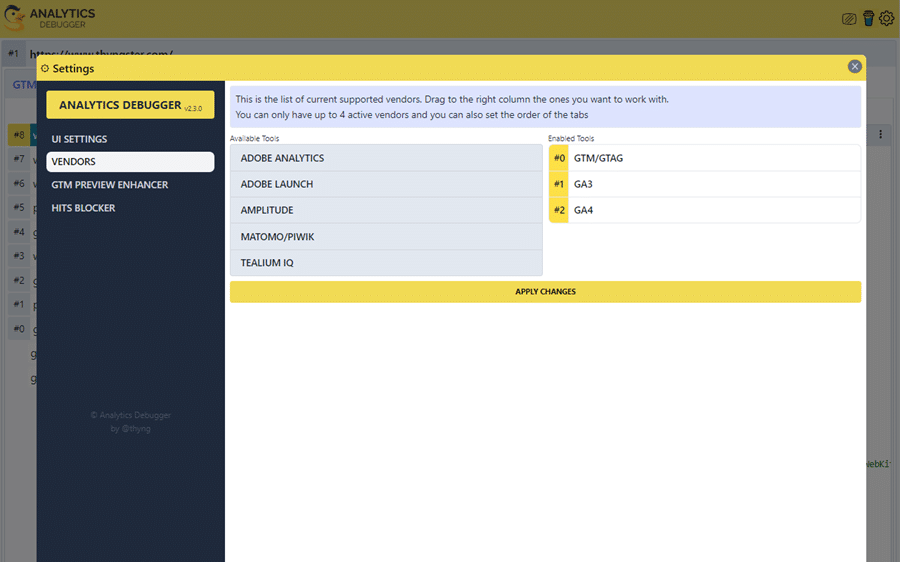
Analytics Debugger is a Chrome extension developed by David Vallejo. It’s a multi-functional tool designed to make debugging both GTM and Google Analytics implementations easier. It has a wide range of features that any analytics pro is sure to find invaluable. They include but aren’t limited to:
- Letting you view all dataLayer pushes. Plus, displaying some profiling details, like the time between pushes.
- Providing information on all Google Analytics events sent by each inspected page.
- The ability to copy push details to the clipboard in an attractive format. This is especially useful if you need to make documentation for clients
Google Analytics Opt-Out
Google Analytics Opt-Out is an opt-out browser add-on for Google Analytics JavaScript. It provides website visitors with the ability to opt-out of their data being used by Google Analytics. To use the add-on, it must be downloaded and installed for your browser. It’s compatible with Internet Explorer 11, Safari, Firefox and Opera, as well as Chrome.
There are a couple of ways in which the add-on can be useful when performing analytics. You can use it to keep certain site visits and sessions from affecting your tracking data. For instance, you don’t want internal traffic skewing your tracking. Plugins are also available to offer the opt-out to your real site visitors in order to comply with GDPR.
Ghostery
Similar in functionality to Google Analytics Opt-Out, Ghostery is another tool that many marketers swear by. It’s a Chrome add-on which uses anti-tracking and advert-blocking features. It can detect tracking technologies and gives you the option to block them if desired.

Once again, that’s helpful for stopping your own data being recorded by Google Analytics. You will obviously want to filter out your company IPs in Google Analytics itself. Where Ghostery is handy is when it’s a visit from a different IP that you don’t want to be tracked. For example, if you visit your site from a dynamic IP or from a device outside of your office.
GTM Variable Builder
The GTM Variable Builder is a plugin that can be really handy for web development and analytics alike. It is designed to enable you to easily create custom JavaScript variables. Those variables can be easily retrieved and shown within the Chrome Developer Console, by following these steps:
- Highlight a textual element of a webpage (price, product ID etc.).
- Click the GTM Variable Builder icon.
- Go to the JavaScript Console in Chrome.
- View the retrieval of the element you highlighted.
That lets you test your generated JavaScript in the console. If what you highlighted is what’s returned, you can then copy it and turn it into a custom JavaScript variable in GTM.
DataSlayer
If you’re looking for a tool to debug and test tag management and analytics implementation, DataSlayer may be for you. It allows you to inspect data layers in real-time by adding a panel to Chrome Developer Tools.
The tool is similar in functionality to GTM’s Preview mode but offers a better user experience. Its main advantage is how multi-functional it is. The DataSlayer tool works with other analytics interfaces as well as Google Analytics. It can also detect and read the data layers of Tag Commander, Adobe DTM and Tealium among others.
Clear Cache
Another simple but handy Chrome extension, Clear Cache lets you clear browsing data and caches with one click. It also takes away those pesky confirmatory dialogue boxes and pop-ups. Quick cache clearing is handy if you want to visit your site and have the visit recorded as a new session. For example, if you’re testing tracking codes or other analytic elements.
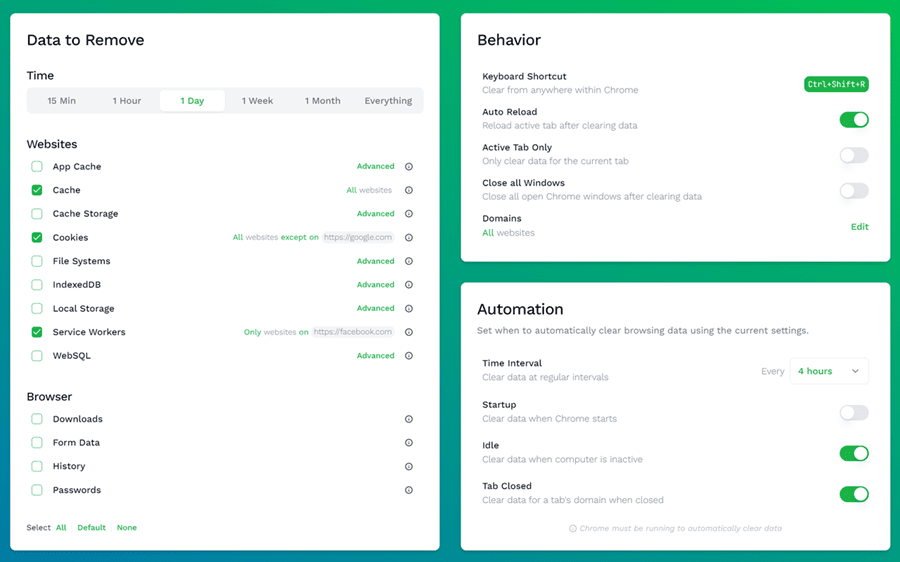
The tool allows you to customise exactly what data and how much of it you wish to clear. You can choose to clear any combo of cache, app cache, cookies, downloads and loads of other data. You also have the option to remove cookies globally, for certain domains only or for all but certain domains.
Meta Pixel Helper
Meta Pixel Helper is a troubleshooting tool. It’s designed to help you validate pixel implementation. It works in the background and will discover conversion tracking, custom audience, and Facebook pixels. It will then provide feedback on implementation in real-time. Once installed, you will see a Meta Pixel Helper icon. The icon displays how many instances of pixel implementation the tool has discovered.
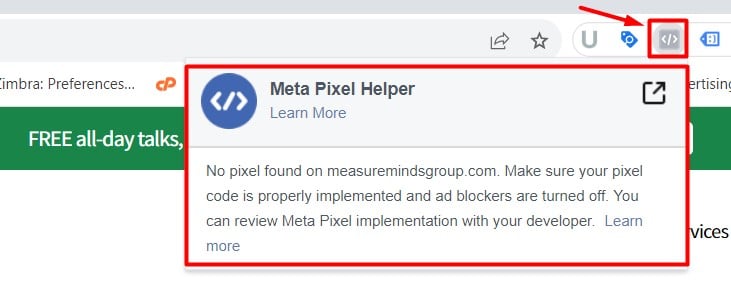
If you click on the icon, an overview panel will then appear. That panel displays details of a page’s pixels. Those details are complete with warnings, errors, and successes. This is one of our Google Analytics tools which is particularly handy for e-commerce sites. That’s because it can help you boost the efficiency of conversion tracking and/or advertising efforts.
UET Tag Helper
Understandably, our Google Analytics tools so far have largely come from Google themselves. There are some useful tools available from other sources, however. They deserve at least some of our attention. Bing UET tags are associated with Bing Ads from Microsoft. They help you to track conversion goals and create remarketing lists.
The UET Tag Helper (by Microsoft Advertising) is an extension which helps identify issues with those tags. It offers a quick and easy way to confirm that Bing Ads UET tags are set up correctly. When you navigate to a page, the helper can provide loads of helpful information. That includes which UET tags are on the page and if they’re working. It will also offer suggestions as to what to do to fix any issues that may be present.
Twitter Pixel Helper
The Twitter Pixel Helper does a similar job to the Meta Pixel Helper, but for Twitter rather than Facebook website tags. It helps you with all aspects of your Twitter website tag implementation. The Pixel Helper looks for website tags firing in the background. It displays an icon if there is such a tag firing on whichever page you are inspecting.
You can then click that icon to view detailed feedback on implementation. That includes information on which tags were fired and warnings of any mistakes. If and when problems are detected, simple troubleshooting suggestions are also offered. Another feature lets you view details of the last 30 pixel fires detected by the Pixel Helper.
GTM Copy Paste
In compiling our Google Analytics tools list, we’ve tried to include a few alternatives for each task you may want to complete. The GTM Copy Paste by MeasureSchool is a tool you can use if GTM Tools doesn’t hit the spot. It’s a Chrome extension that also makes it easier to copy and paste information from one GTM account to another.
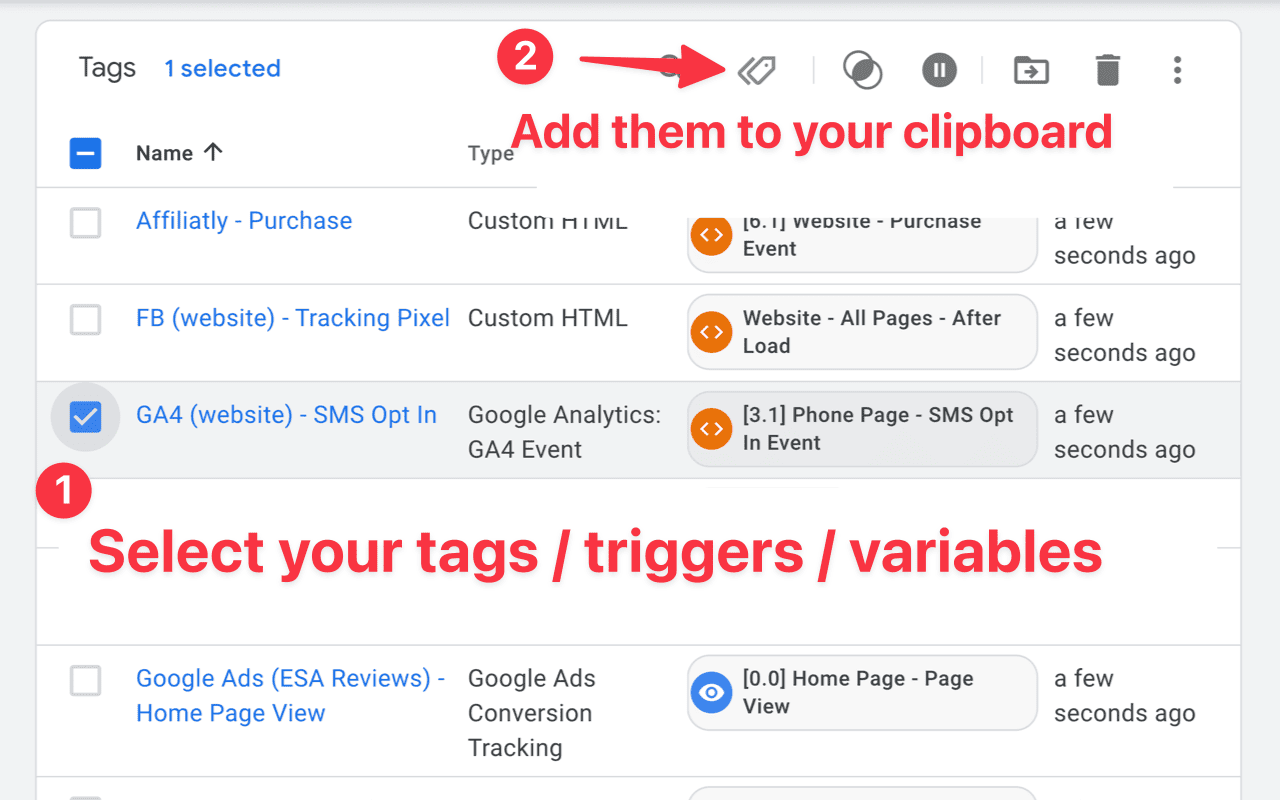
The tool offers a straightforward way to copy and paste tags, triggers, and variables. You simply add what you want to copy to the extension and then paste it to your desired account. It’s then uploaded through the GTM API.
By building a menu of what you want to copy, you no longer have to perform container exports and re-imports. That’s the only way to copy from one account to another within the GTM admin interface itself.
What’s great about this plugin, too, is that the relationship between tags and triggers remains intact. You just have to copy and paste them together, as one process.
7 Best Google Analytics Sheets Add-ons
Consent Mode Monitor
The Consent Mode Monitor Google Sheets Add-on helps you run Consent Mode checks at scale from a spreadsheet. You can scan multiple websites or GTM containers, review the results in dedicated report tabs, and schedule recurring checks for ongoing audits.
It is useful for regulators, agencies, privacy teams, and anyone who needs to review consent configurations across many sites without manually checking each one.
GA4 Reports Builder for Google Analytics
GA4 Reports Builder for Google Analytics helps you create GA4 reports directly inside Google Sheets. You can choose the property, date range, dimensions, and metrics you want, then build a report setup that fits your reporting needs.
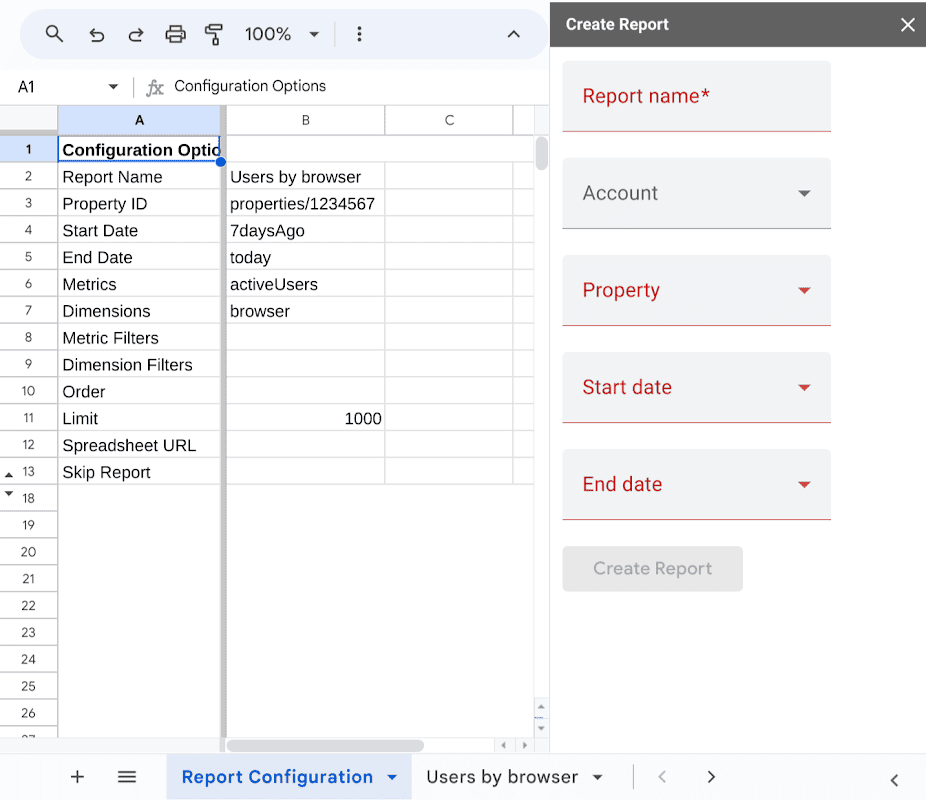
Once the setup is ready, you can run reports from the add-on menu without rebuilding them each time. It also supports dimension and metric filters, plus scheduled reports for recurring GA4 reporting.
Google Analytics Validator
The Google Analytics Validator is another of Simo’s offerings to add to your analytics toolkit. This particular tool is a Google Sheets add-on. It can be easily added to any sheet, via the ‘add-ons’ option on the main toolbar. The add-on allows you to build a spreadsheet of all the accounts, properties and views you have access to in Google Analytics.
You can also use it to select any property and populate a second sheet. The second sheet will display the custom dimensions configured in the chosen property. It will also show you the events which those custom dimensions have collected in the past seven days. That allows you to see which aren’t collecting data and make any changes you wish.
Google Analytics Management Magic
Google Analytics lets you manage view filters within a single account. What isn’t easy, is copying filters between multiple Google Analytics accounts. As a creative Bristol marketing agency working with multiple clients, we’ve run across this issue many times. It’s particularly troublesome when you want to copy IP address filters or lowercase filters for URLs.
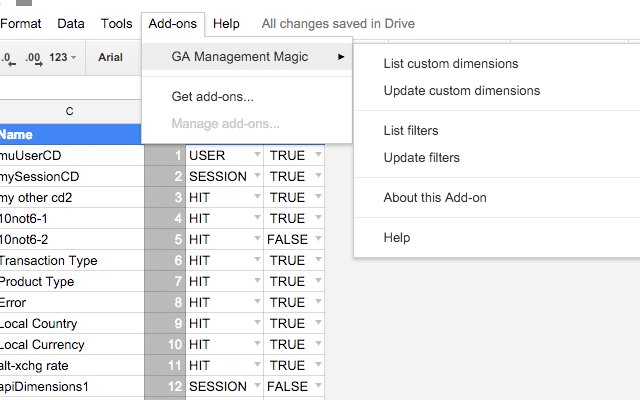
Google Analytics Management Magic is a Google Sheets add-on which makes life much easier. It lets you download all desired filters from a Google Analytics account to Google Sheets. You can then upload the filters to a different account; editing them first if required.
Google Analytics Reports
Google Analytics Reports helps you pull GA4 data into Google Sheets for reporting and analysis. You can use ready-made templates or build custom reports with a wide range of dimensions and metrics, including traffic, engagement, conversions, campaign data, and device details.
The add-on can refresh reports daily, hourly, or every five minutes, which is useful for teams that need updated dashboards in Sheets. It also supports reporting across multiple Google Analytics accounts, making it a practical option for agencies and businesses managing several properties.
GA4 – Reporting for Google Analytics 4
Reporting for Google Analytics 4 helps you build and manage GA4 reports inside Google Sheets. You can select dimensions, metrics, filters, and sorting options through a sidebar, then save the report setup in your spreadsheet.
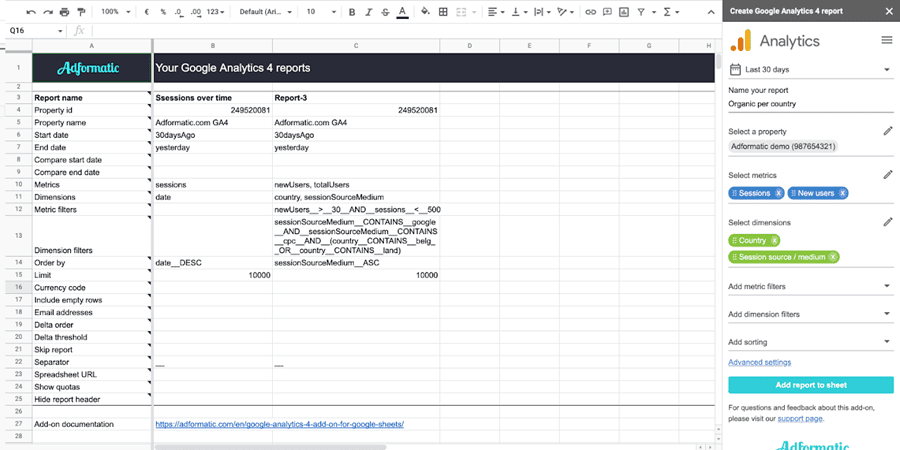
It also supports scheduled report updates, date-range comparisons, and optional email alerts when reports are ready or fail to run. That makes it a strong choice for users who want more detailed GA4 reporting in Sheets without creating each report from scratch every time.
Measuremate: Google Analytics GA4 Reports, Tracking & Audit
Measuremate helps users work through more of the GA4 process from one place. It supports reporting, tracking plans, event validation, and audits that check for common GA4 setup issues, rather than focusing only on pulling data into Sheets.
It can also send GA4 and BigQuery reporting outputs to Google Sheets and other channels, making it useful for teams that want reporting and tracking in a single workflow. I would include it as the most all-in-one GA4 add-on in the list.
Conclusion
The best Google Analytics Chrome extensions and Sheets add-ons solve different parts of the same problem. Extensions help with live checks, tag debugging, consent reviews, and quick QA in the browser. Sheets add-ons are better for pulling GA4 data into reports, managing repeatable checks, and working across larger sets of sites or properties.
The right setup depends on what slows your team down most. If you need help finding deeper issues in GA4, GTM, or Consent Mode, MeasureMinds Group can review the setup and show what needs fixing.
- Top 24 Google Analytics Chrome Extensions & Sheets Add-ons - 21/05/2026
- Best Consent Management Platforms (CMP) - 19/05/2026
- Google Signals and Consent Mode: What This GA4 Change Really Means - 23/04/2026